The views
Every project has one gallery of captures and three ways to look at it. The view toggle sits at the left end of the filter row, above the captures: a phone icon, a grid icon, and a list icon, in that order.
Your choice rides in the page address, so a link you copy or bookmark opens on the same view, with the same filters and sort, as the page you were looking at.
Storyboard
The phone icon, and the view a project opens on. Instead of individual captures you get a canvas of groups: one card per screen of your app, each showing a representative thumbnail, the group's name, and how many captures are in it.
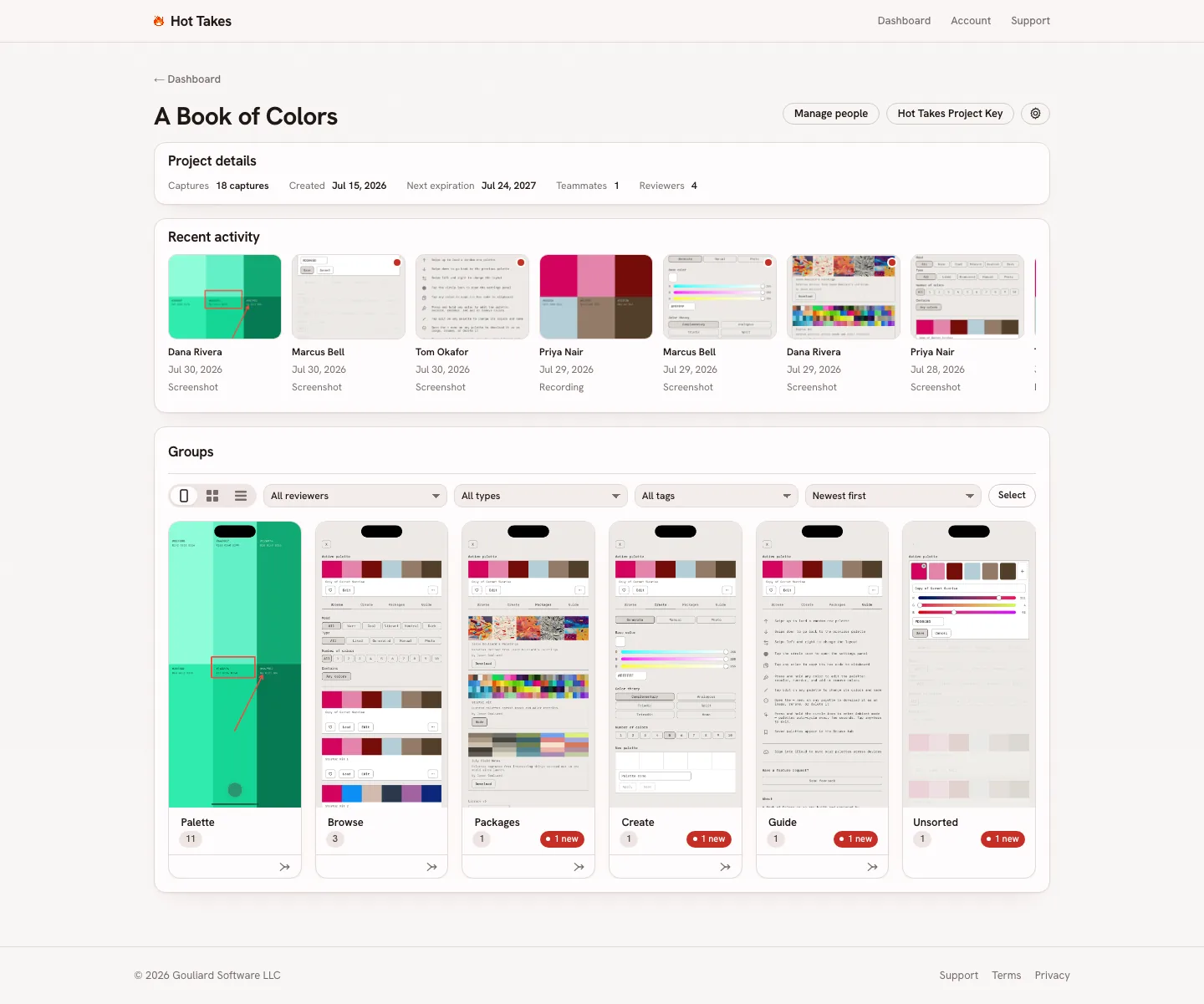
Storyboard answers a question the other two views cannot: which parts of my app are people actually reacting to? Twenty captures spread evenly across your app and twenty captures piled onto one checkout screen look identical in grid view. They look nothing alike in storyboard.
The count on a card is exact. It is the number of captures in that group that match whatever filters you have applied, counted properly however large the project is.
Grid
Uniform tiles. Each card shows the capture's image or video poster, who sent it, and when. Cards are all the same height so a page of them reads as an even wall of thumbnails: the note is left off the card here, and shows up in list view and on the capture itself.
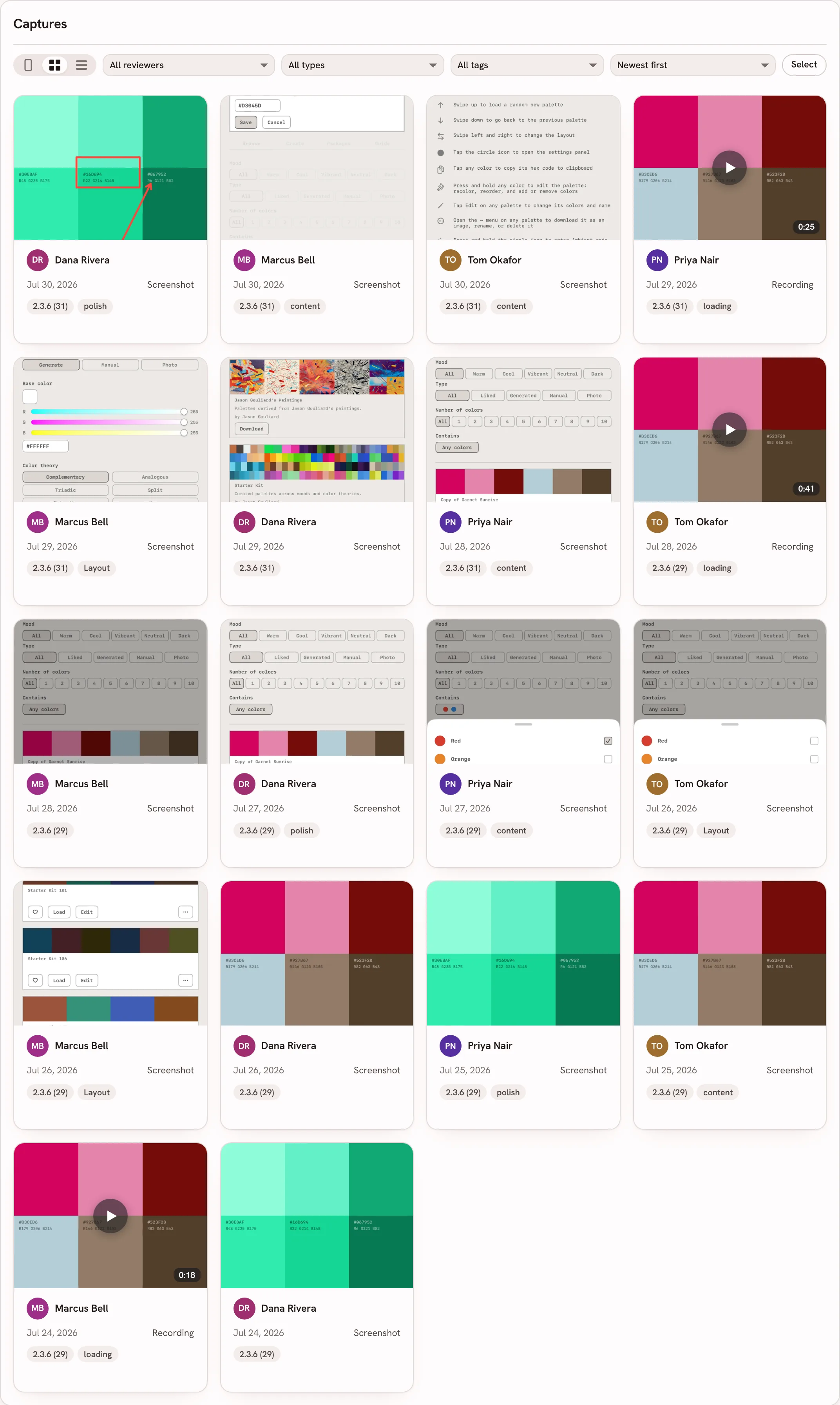
Grid is the right view when you are scanning a lot of feedback quickly and recognizing screens by sight.
List
One row per capture: thumbnail, reviewer, date, type, tags, and the note.
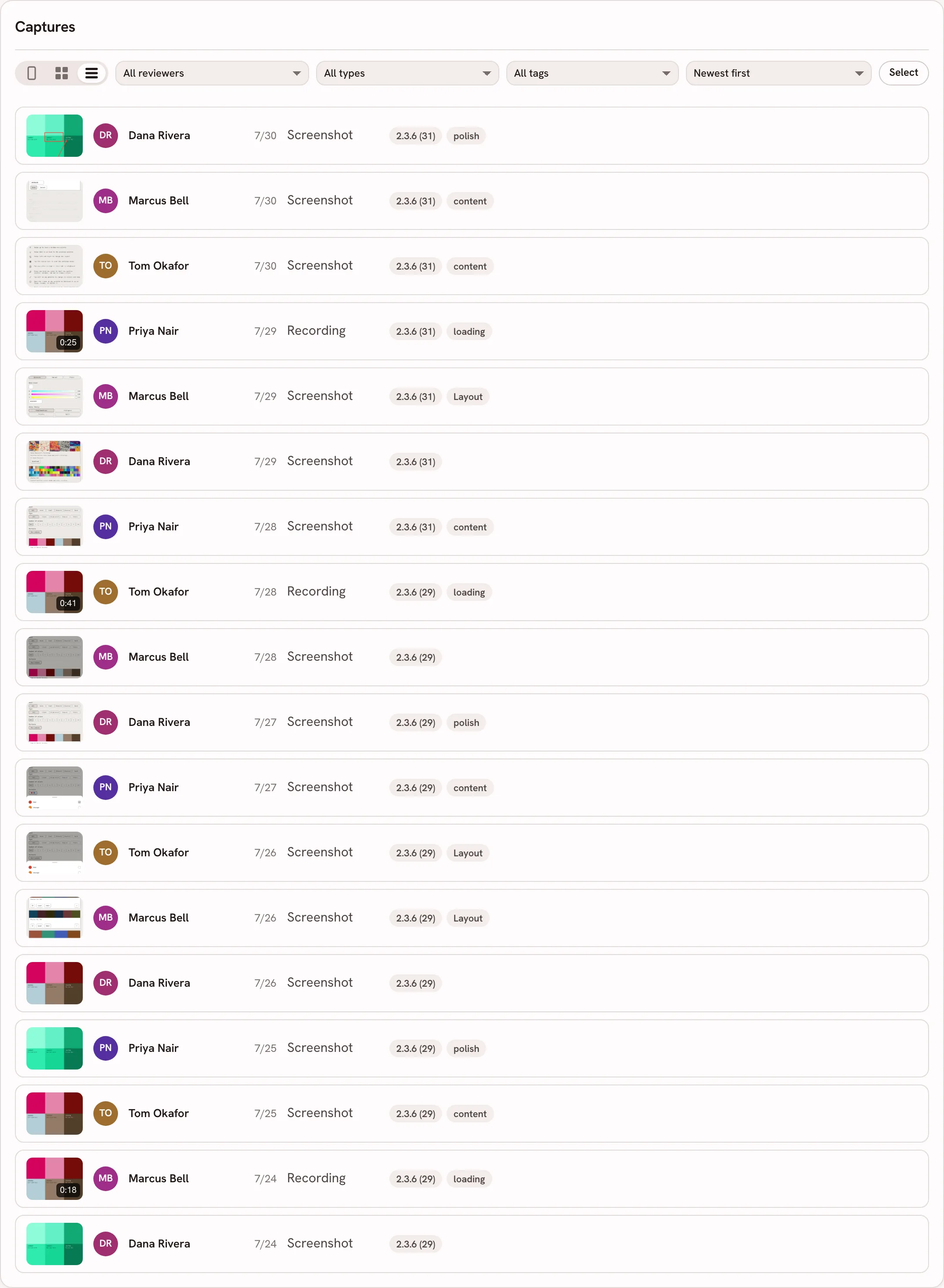
List is the right view when the words matter more than the pictures, for example when you are reading through everything a single reviewer sent, or working down a filtered set to triage it.
How grouping works
We group the captures automatically, and there is nothing to set up. Captures whose screens look alike go into the same group. Nobody tags anything, and nothing is sent anywhere to be analyzed: it is a comparison of the pictures you already sent.
A few things worth knowing about the timing:
- New captures are grouped as they arrive, so a live project keeps itself organized.
- We catch up on anything that was missed, including every capture taken before your project had a storyboard at all. If you open storyboard on an established project and it says captures are still being organized into groups, come back the next day.
- Takes that cannot be auto-grouped park in Unsorted, which is a card on the canvas like any other group. It only appears while something is actually in it.
Groups start with automatic names: Group 1, Group 2, and so on. Rename them and the names stick.
Grouping works from the picture, not from what the screen is called or what the reviewer wrote. Two visually similar screens can land together, and one screen photographed in two very different states (an empty list and a full one) can land apart. That is what the hand controls below are for.
Drilling into a group
Click a group card to see the captures in it. You stay in storyboard: the phone icon stays lit, because opening a group is a drill-down, not a change of view.
Two controls appear above the captures, and they do different things:
- ← Groups takes you back to the canvas of group cards.
- The Group: <name> × chip drops the group filter and leaves you looking at every capture in the project.
The captures module header changes to the group's own name while you are inside it, so you always know what you are looking at.
Filters, sort and the group scope all combine. Filtering to one reviewer while inside a group shows that reviewer's captures on that screen only.
Moving around the canvas
Drag an empty part of the canvas to pan it. Hold Ctrl and scroll, or pinch on a trackpad, to zoom between half size and two and a half times. Dragging that starts on a card, a link or a button does not pan the canvas, so the cards stay clickable.
Renaming, moving and merging
Any member of the project can curate groups. Nothing here is owner-only.
- Rename a group: the pencil beside the group's name on its card. Names can be up to 60 characters.
- Merge two groups: the merge glyph in a group card's footer, then pick the group to merge into. Every capture moves across and the emptied group goes away. A project with only one group shows no merge control, because there is nowhere to merge to.
- Move one capture: open the capture and use the Group section. Pick another group, or start a fresh one holding this capture alone.
- Move several captures at once: in grid or list view, click Select, click the captures you want, then Move to group…. You can move them into an existing group or into a new one.
What you do by hand sticks. A renamed group keeps its name, a merge stays merged, and a capture you moved stays where you put it.
Merging locks the project's groups for the moment it runs, so on rare occasions it comes back and asks you to try again. That is contention with another job, not a failure: press it again.
What the canvas shows while a filter is on
Groups with nothing matching the current filters are hidden rather than dimmed, so the canvas only ever shows you groups you can actually open. If a filter matches nothing anywhere, the canvas is empty and the usual “No captures match these filters” panel explains why, with a button to clear them.
A project with more than 100 matching groups shows the first 100, and the Groups header says so: it reads something like “100 of 137” while it is holding anything back. Otherwise the header is just Groups, with no number attached.
Need a hand?
Use the support form.